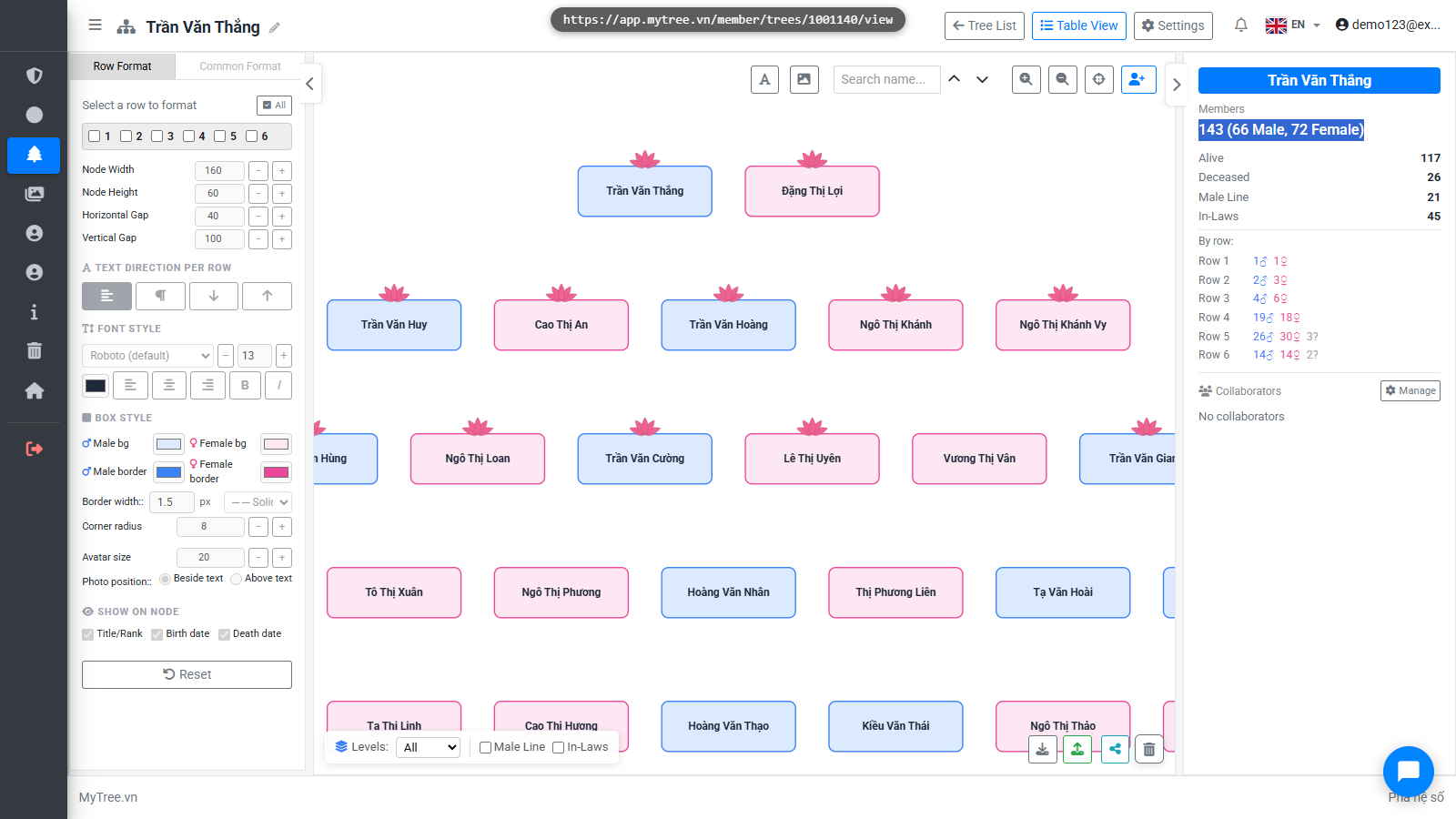
Import Data from Excel / GED-COM
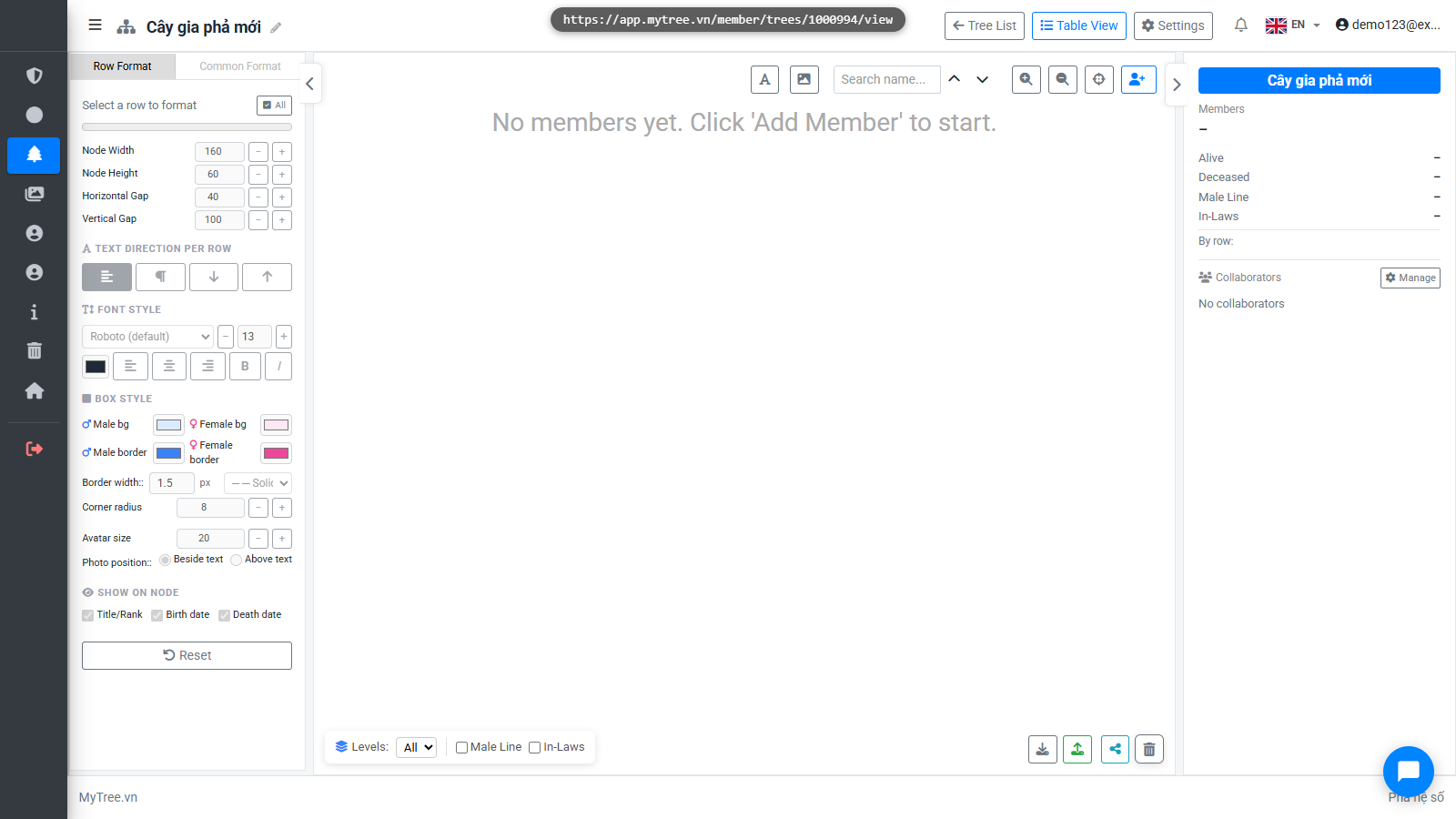
Step 1: Empty Tree Before Import
Welcome to Mytree! In this tutorial, we'll walk you through importing your genealogy data from Excel and GED-COM files.
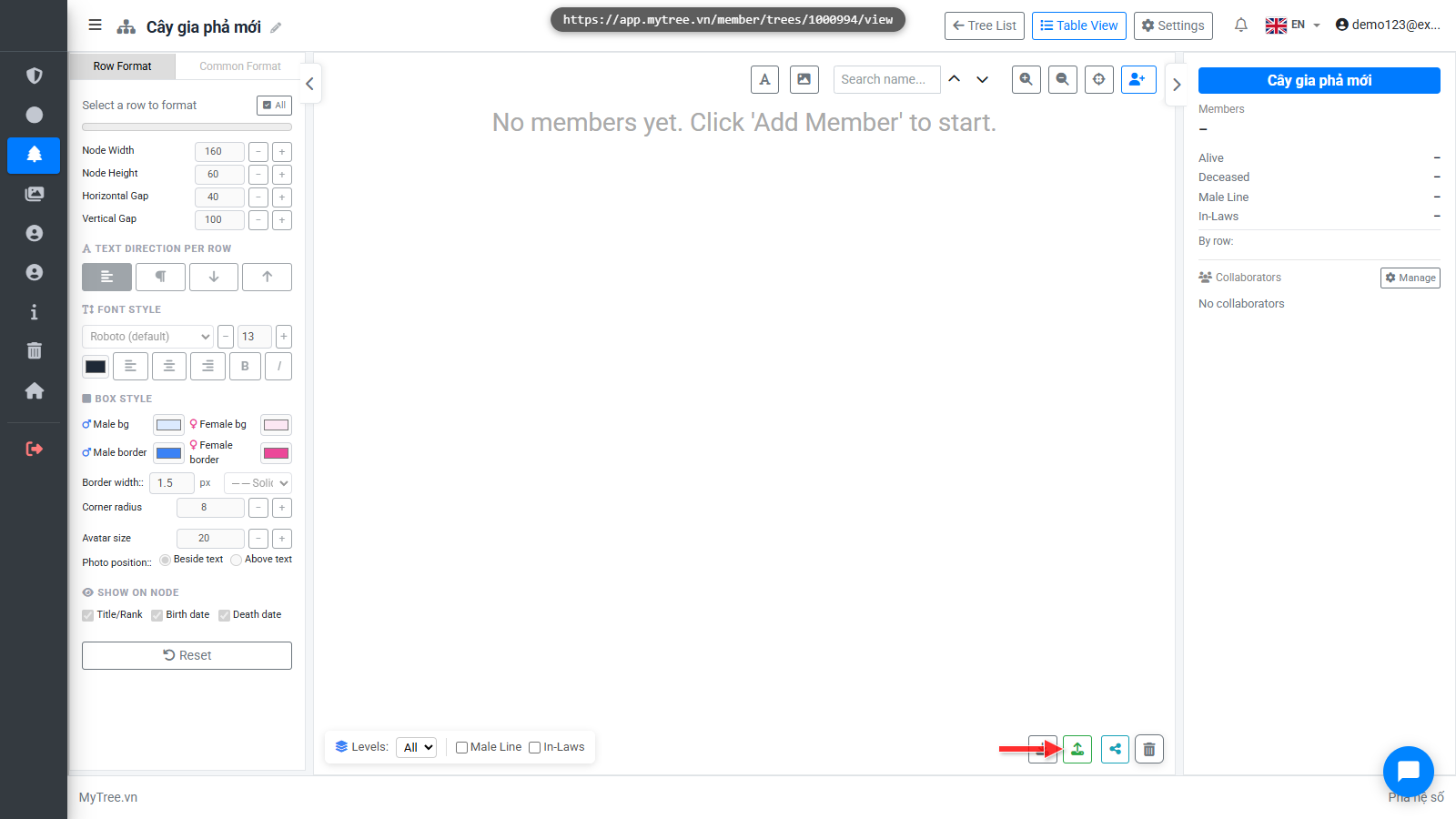
Step 2: Click Import Data Button
Click the Import Data button at the bottom to open the dialog.
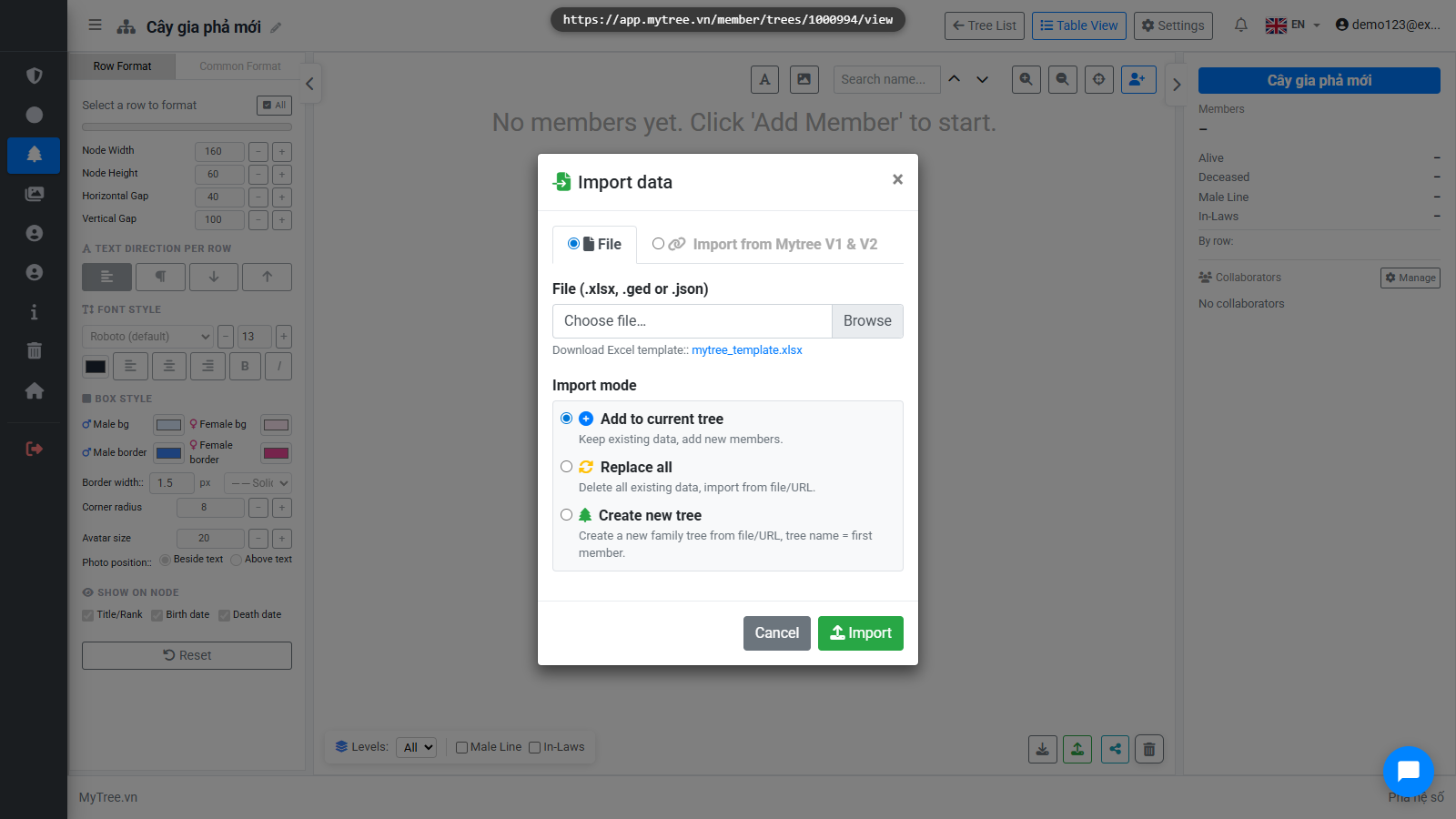
Step 3: Import Dialog
The import dialog supports two sources: Excel file and GED-COM.
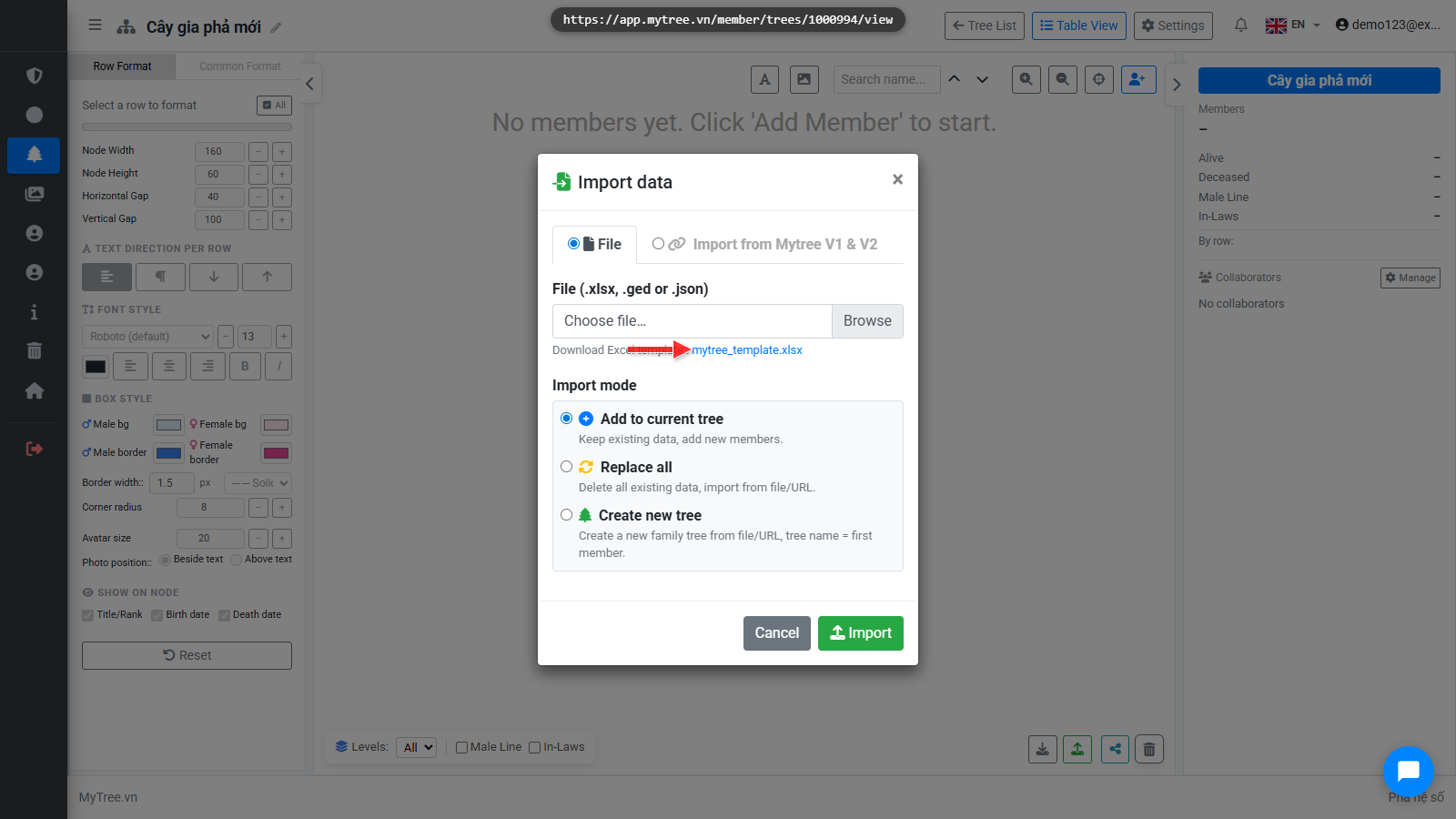
Step 4: Download Excel Template
There's an Excel template file available here. Download it, fill in member information in the correct columns as instructed, then import it into your tree.
Step 5: Supported File Formats
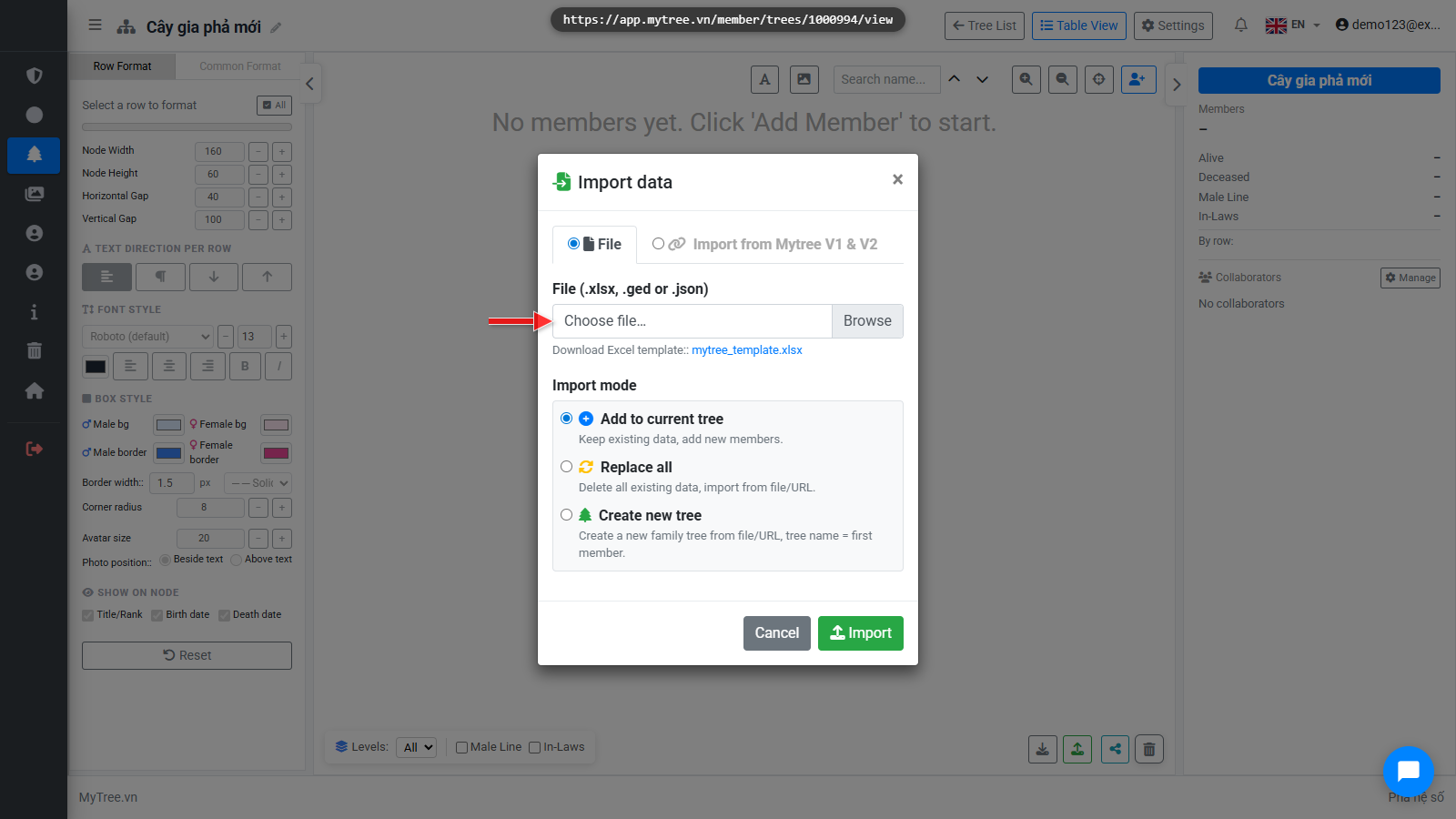
Two formats are supported: Excel for new import or update, and GED-COM from other genealogy software.
Step 6: Create New Tree Mode
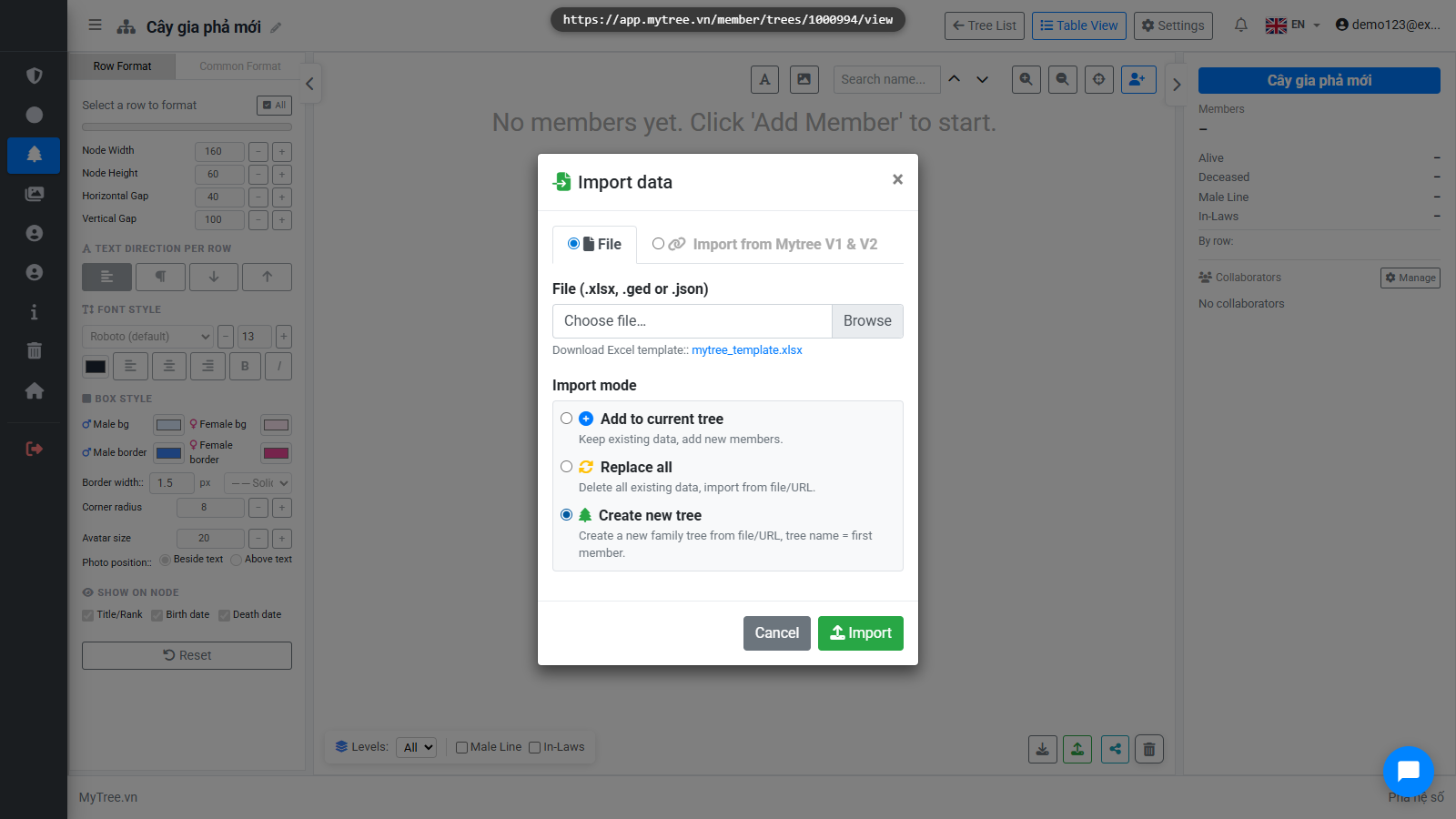
Create new tree mode automatically creates a new family tree from the file, named after the first member.
Step 7: Excel File Selected
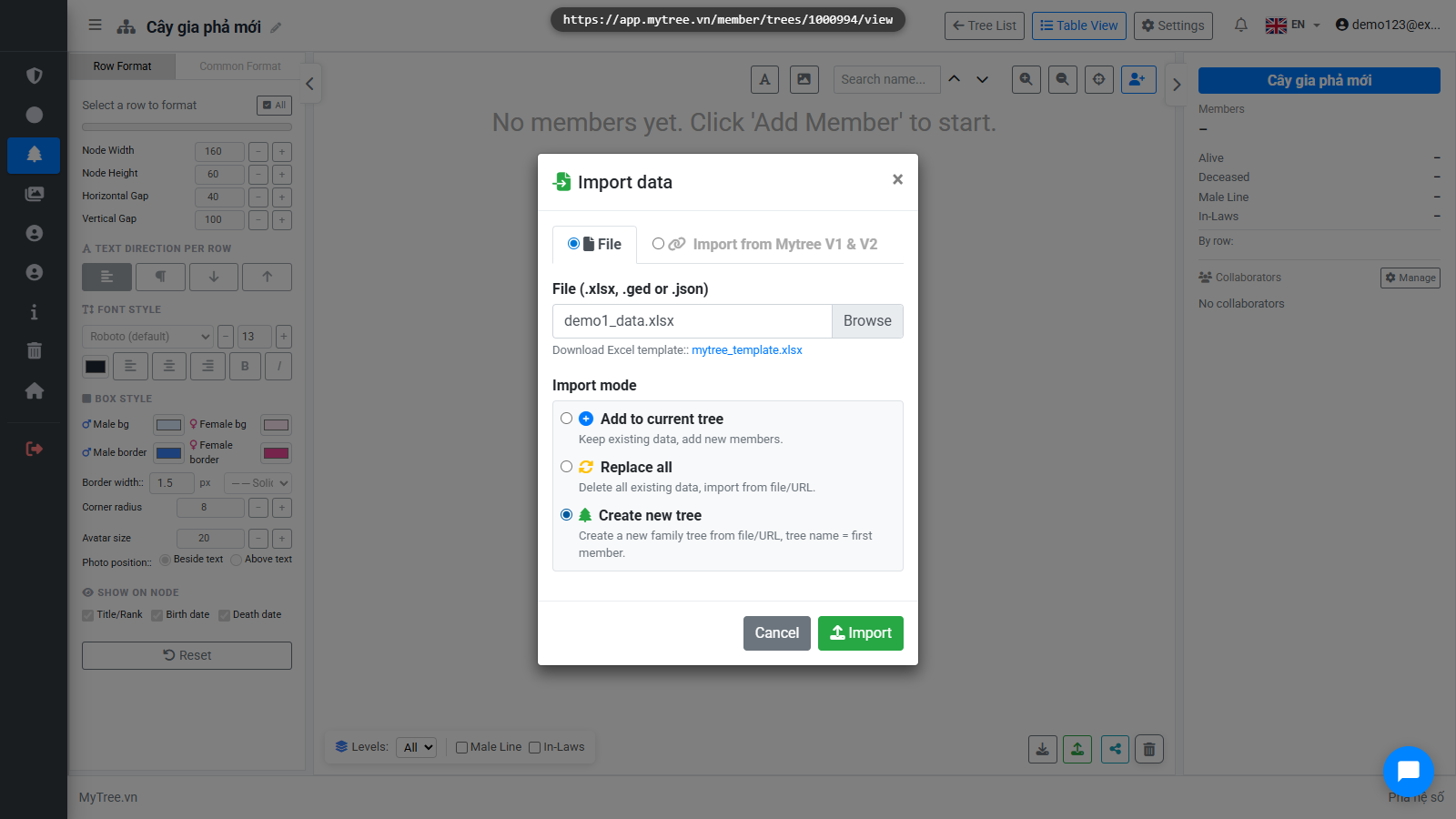
Select an Excel or GED-COM file from your computer. The system validates the format and imports the data.
Step 8: Import Result
Import successful! The new family tree has been created with all members from the Excel file.