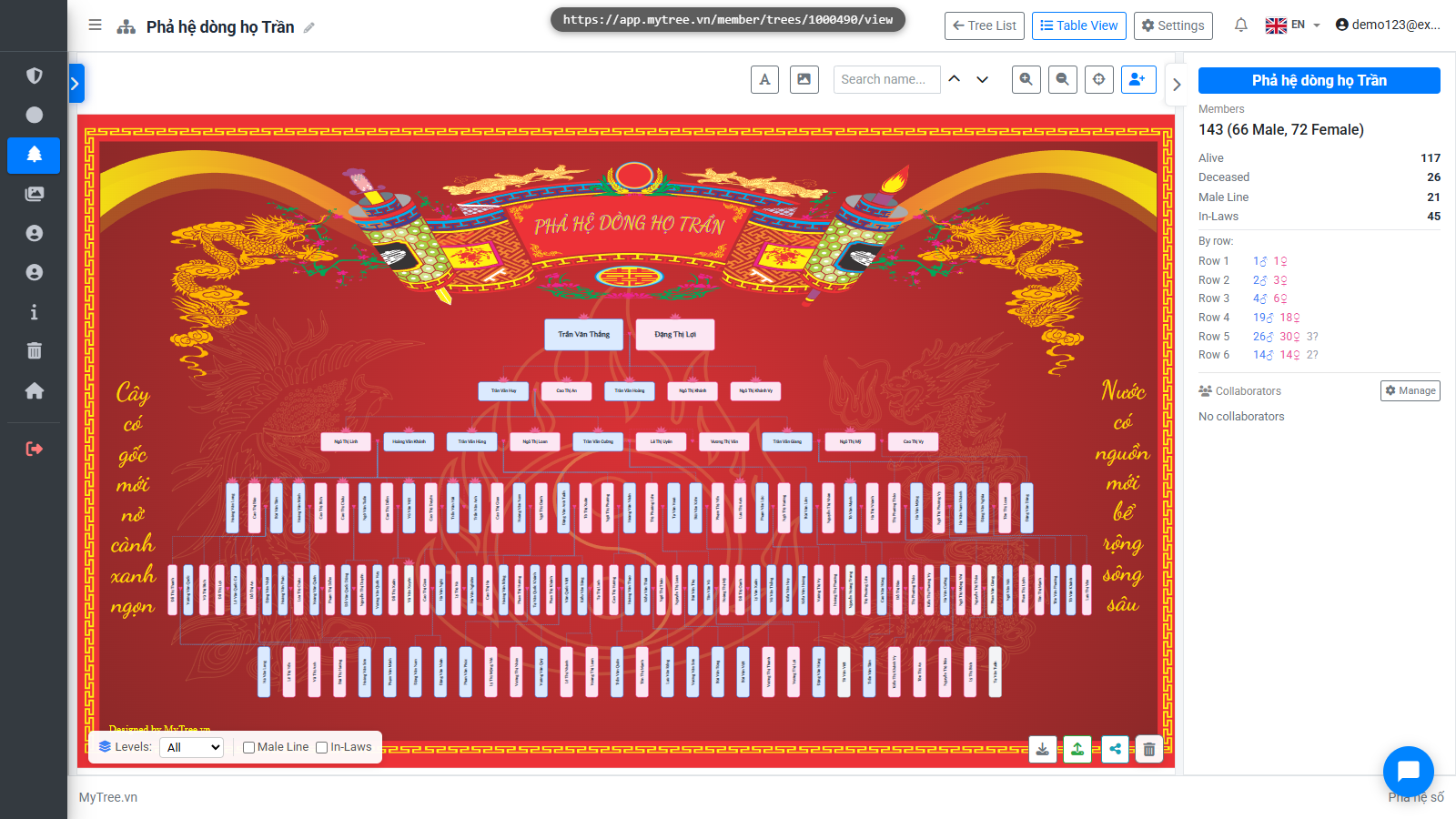
Overlay Images & Decorative Text
Step 1: Family Tree View
Welcome to MyTree! In this tutorial, we'll show you how to enhance your family tree with beautiful images and decorative text.
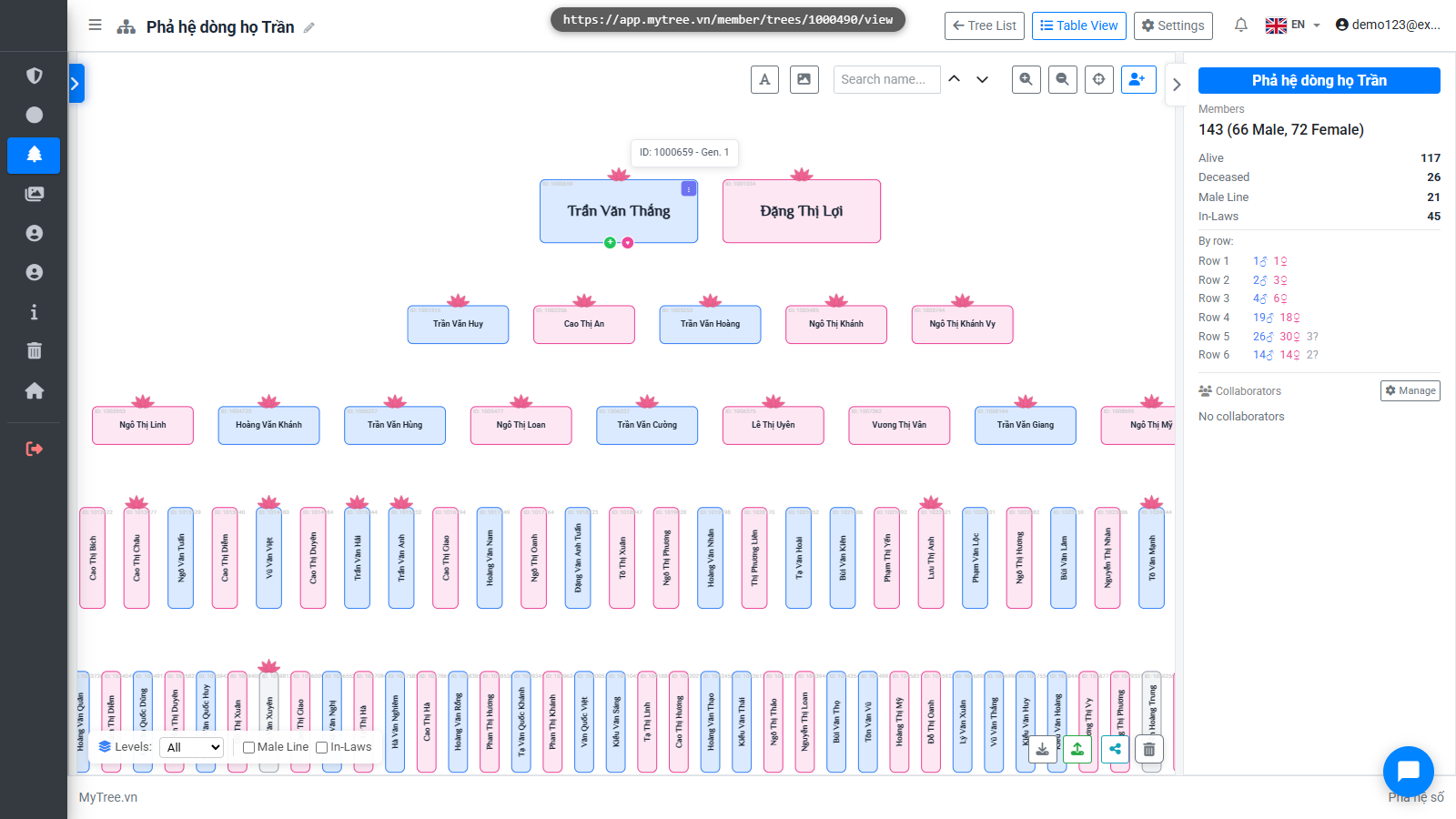
Step 2: Overlay Toolbar
The Image and Text toolbar is at the top of the tree. You can add images or text anywhere on the tree.
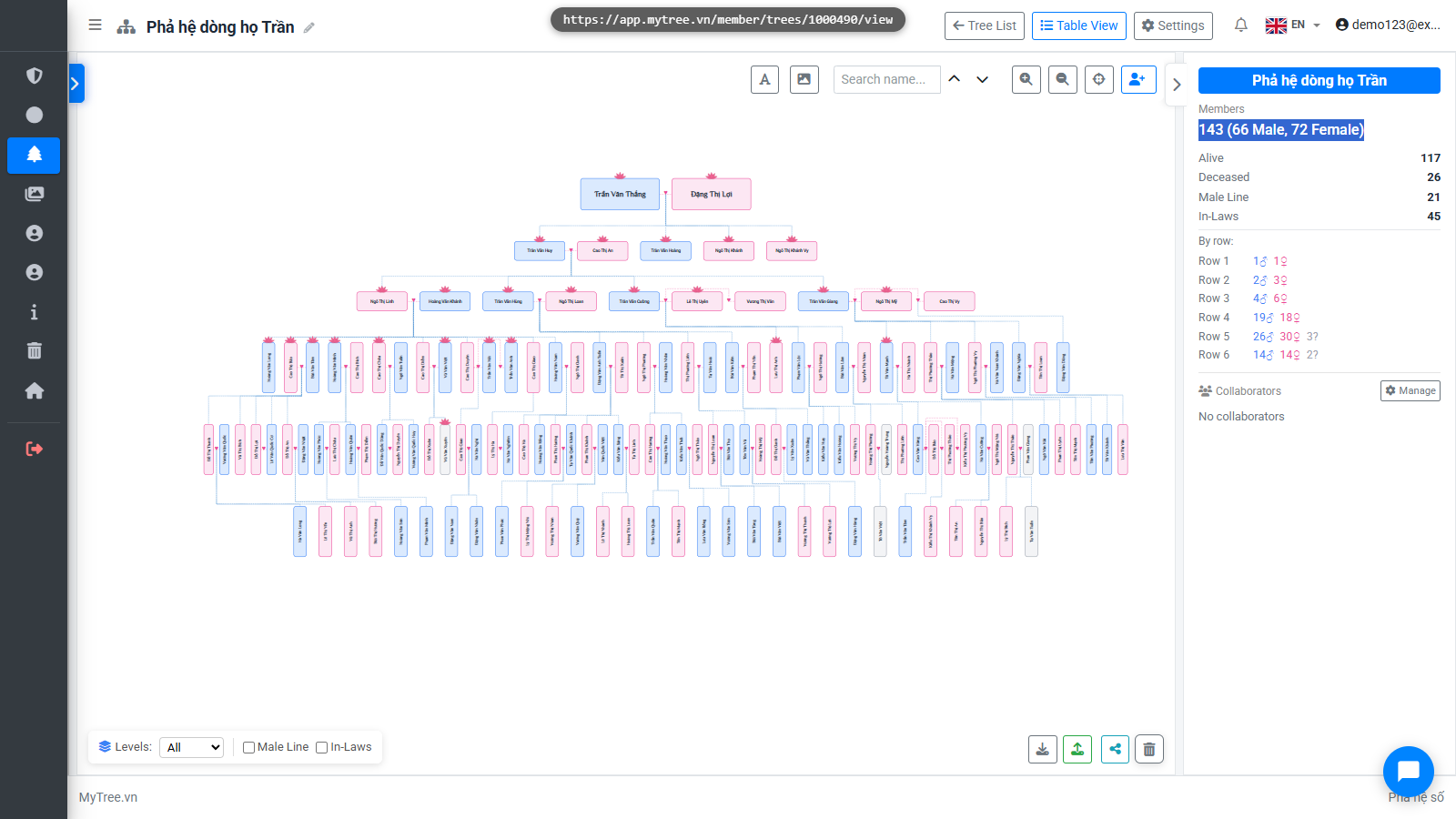
Step 3: Add Overlay Image
Click Add Image to open the image selection dialog. There are two sources: built-in system images and your personal library.
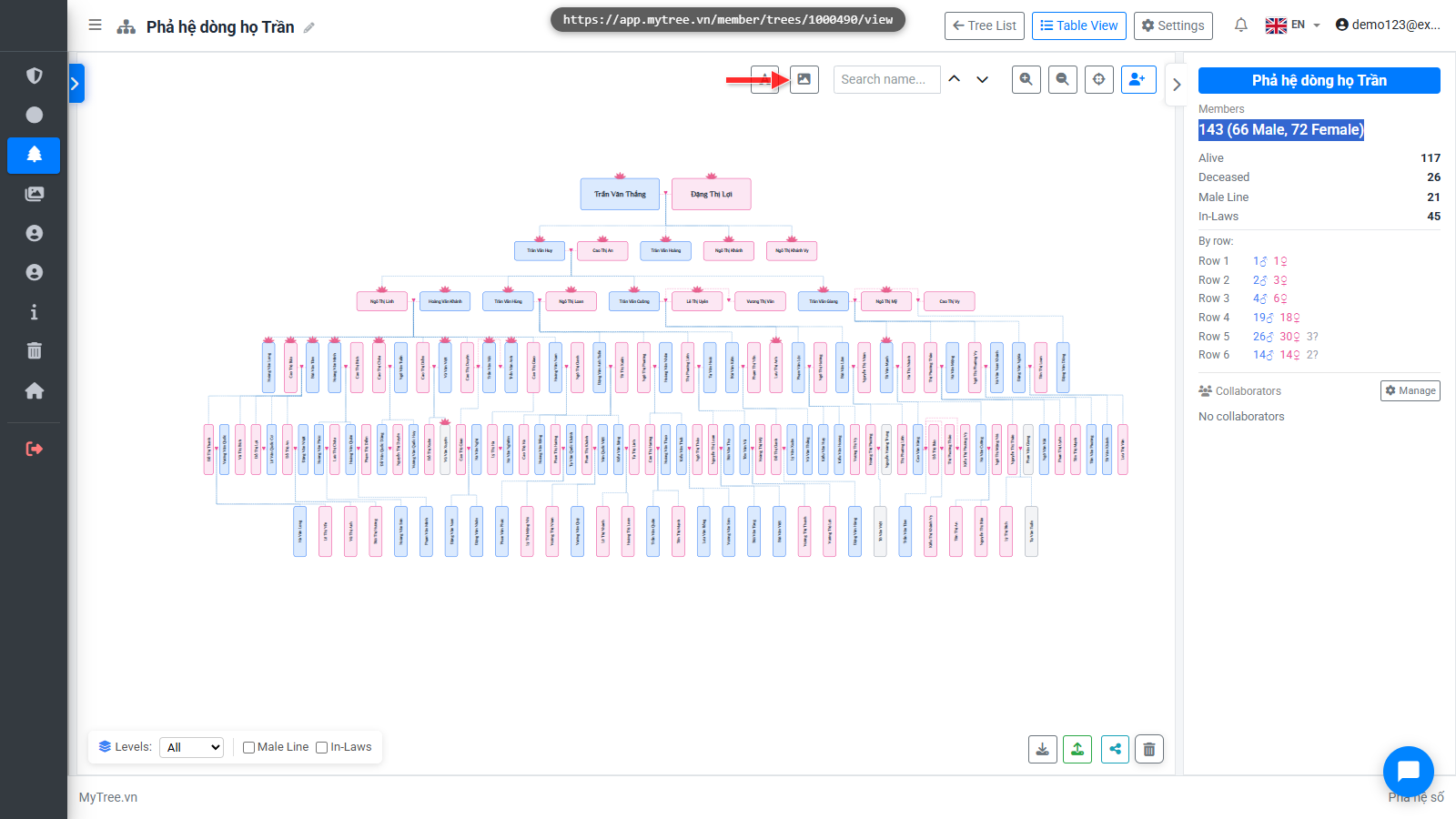
Step 4: Add Overlay Image
Click Add Image to open the image selection dialog. There are two sources: built-in system images and your personal library.
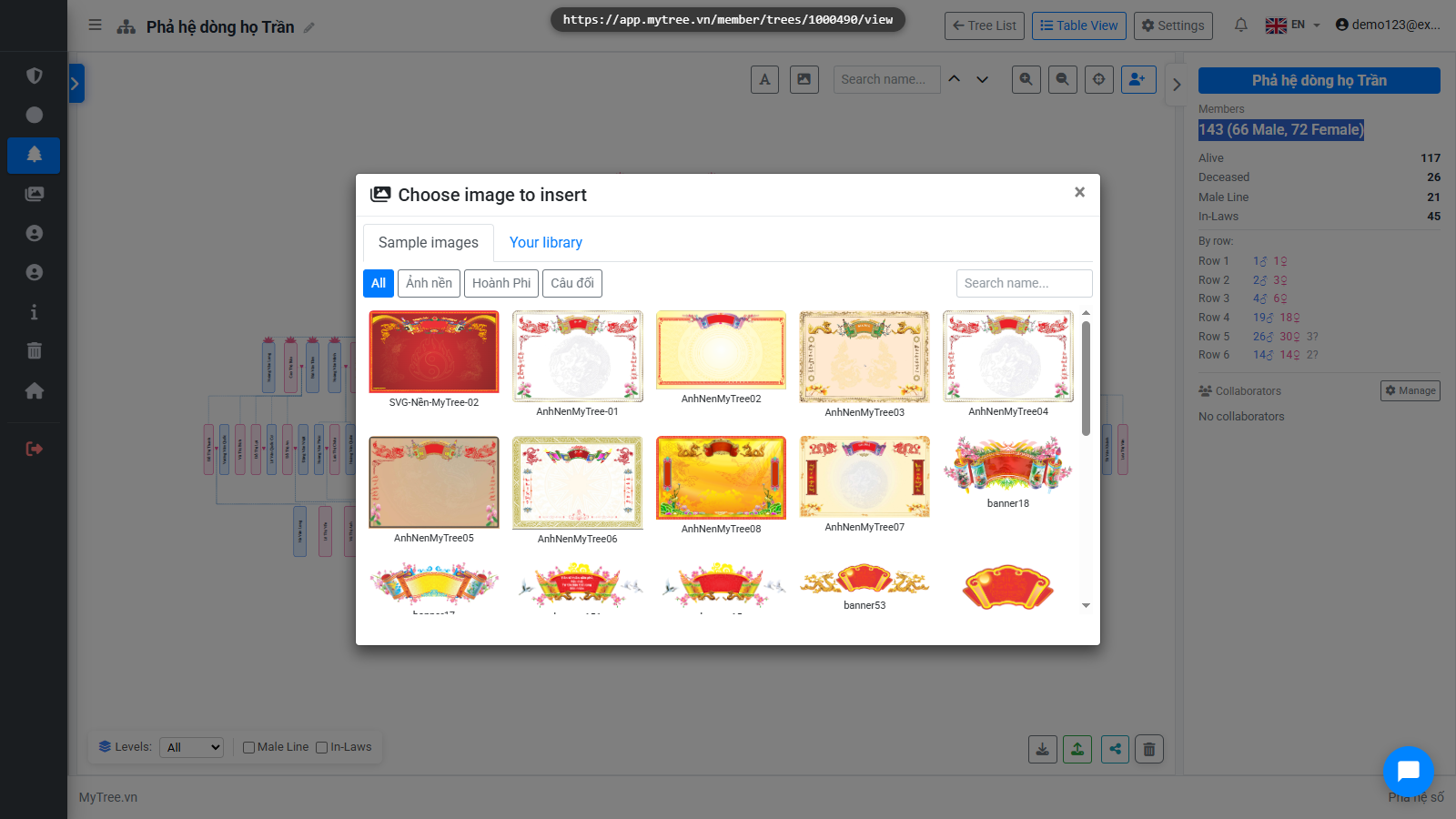
Step 5: Built-in Image Library
The Built-in Images tab offers decorative frames and patterns. Click any image to insert it into the tree.
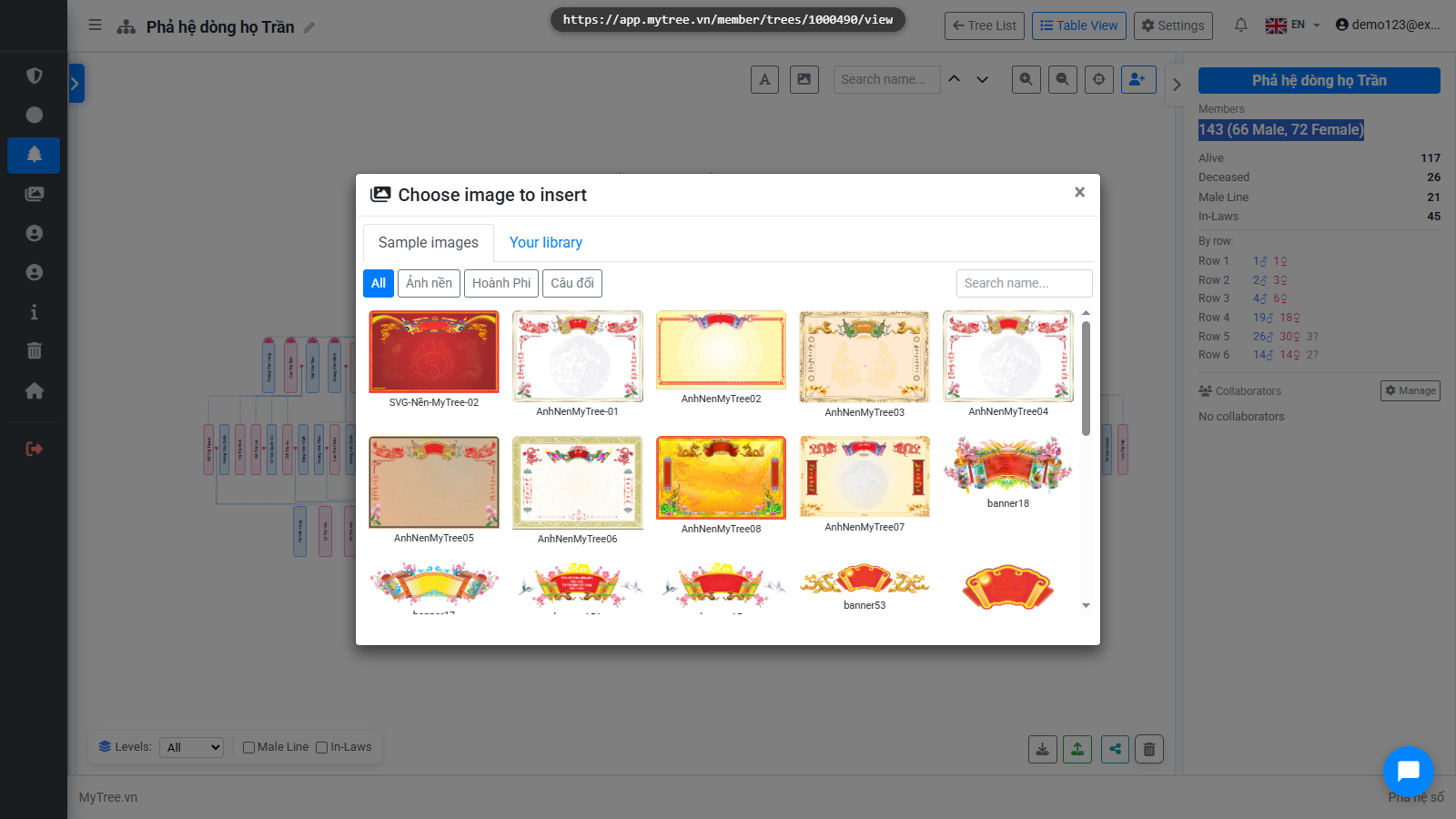
Step 6: Built-in Image Library
The Built-in Images tab offers decorative frames and patterns. Click any image to insert it into the tree.
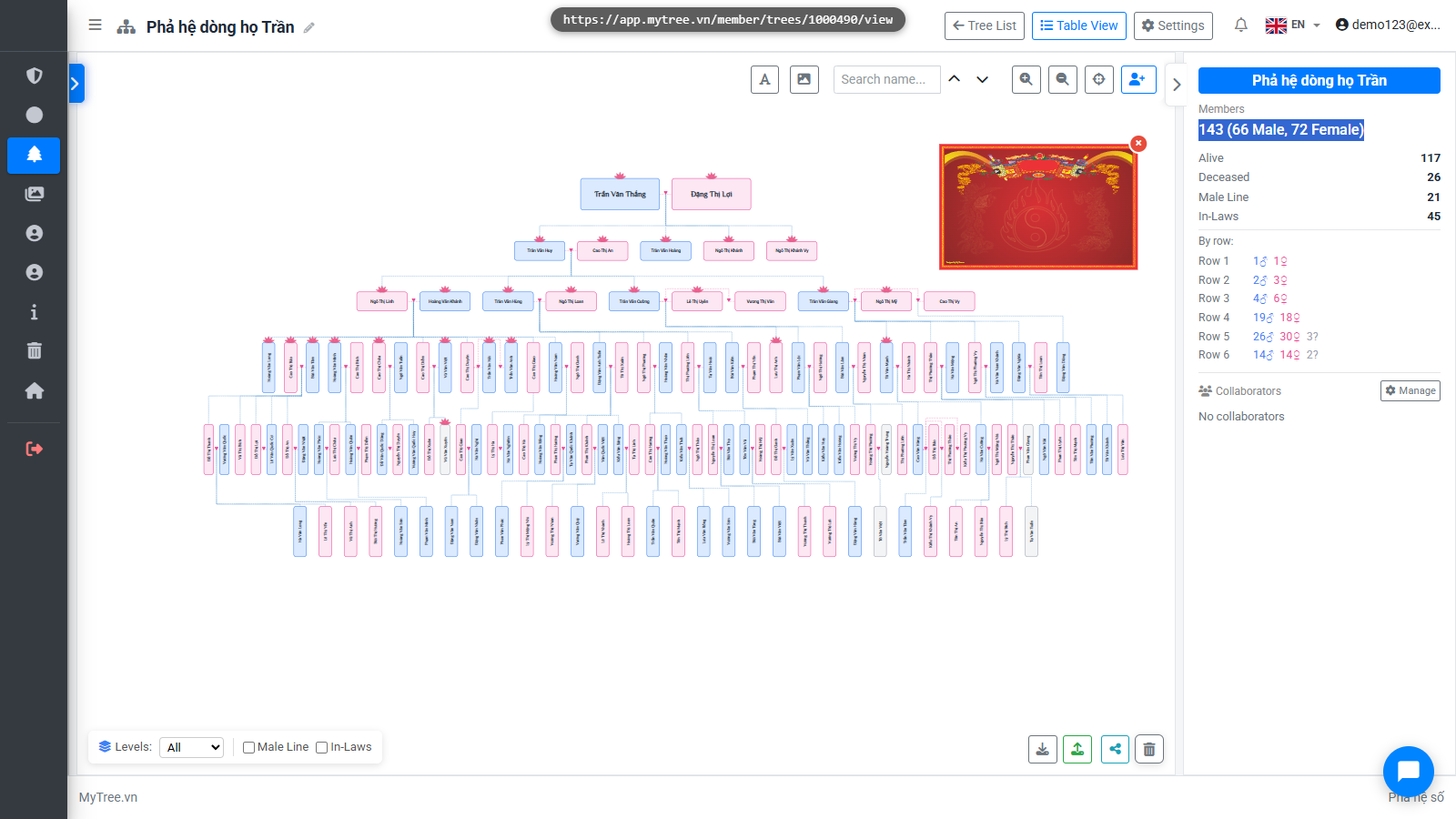
Step 7: Upload Image to Library
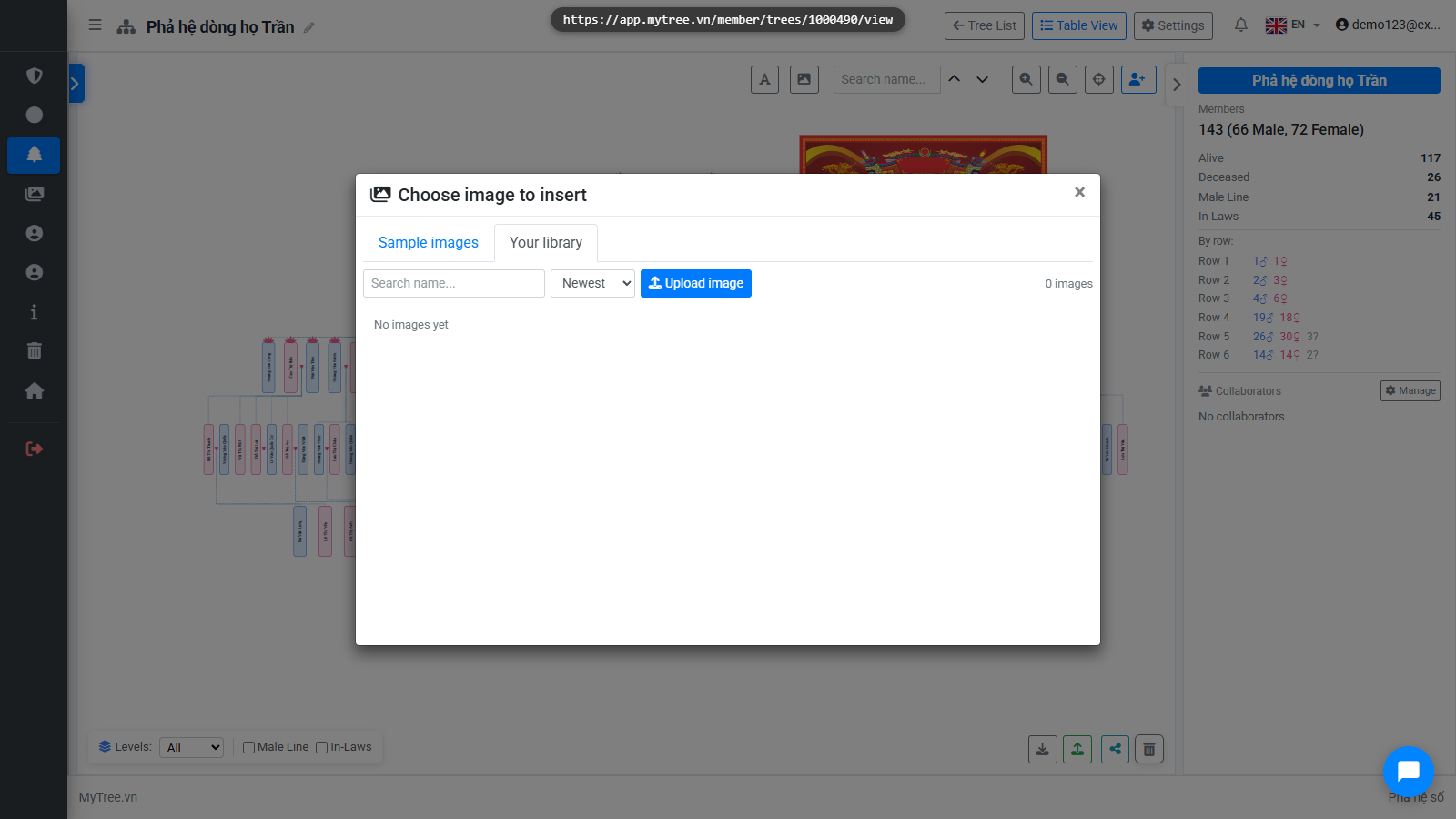
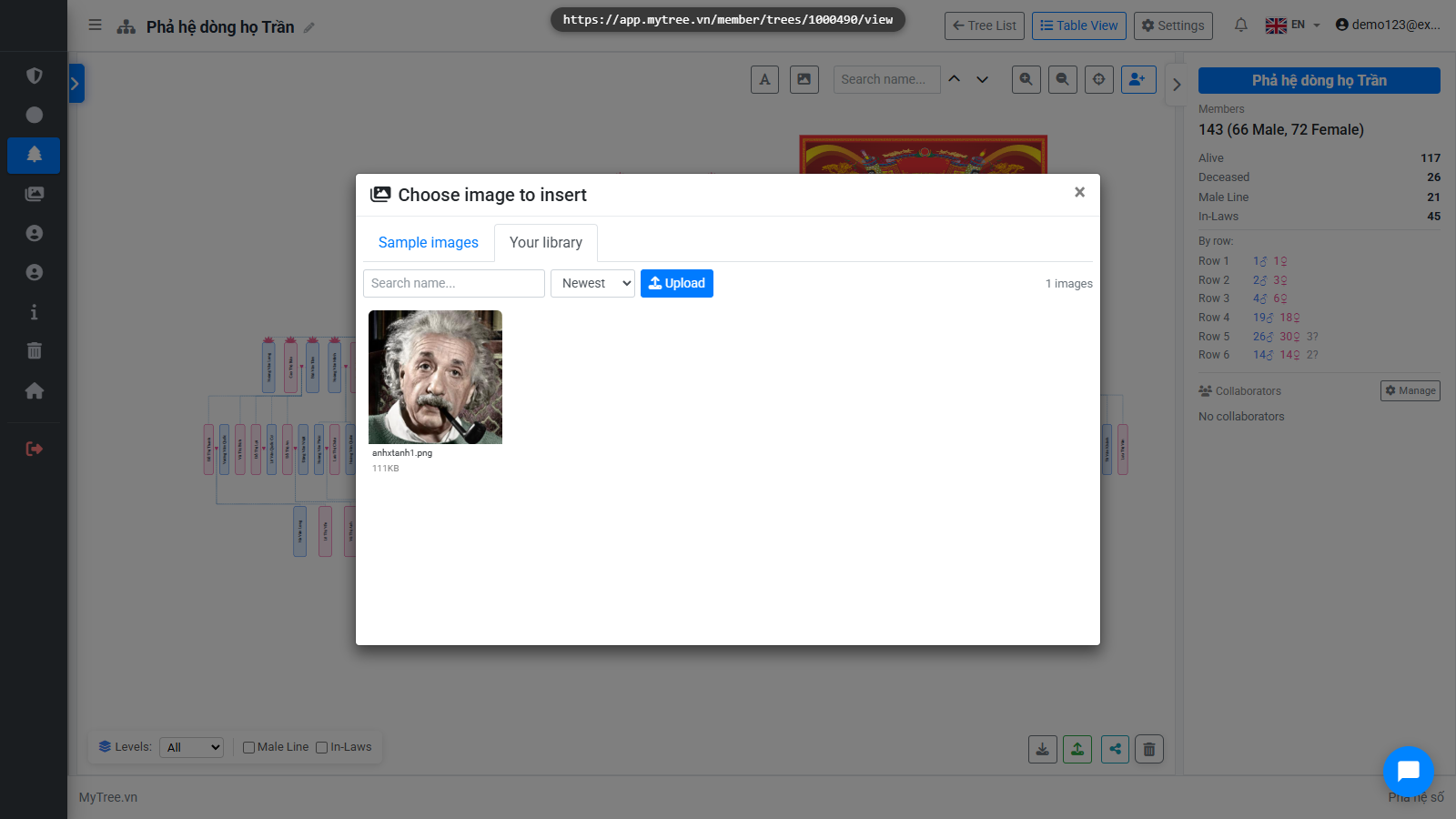
The Your Library tab lets you upload images from your computer. Uploaded images are saved for future use.
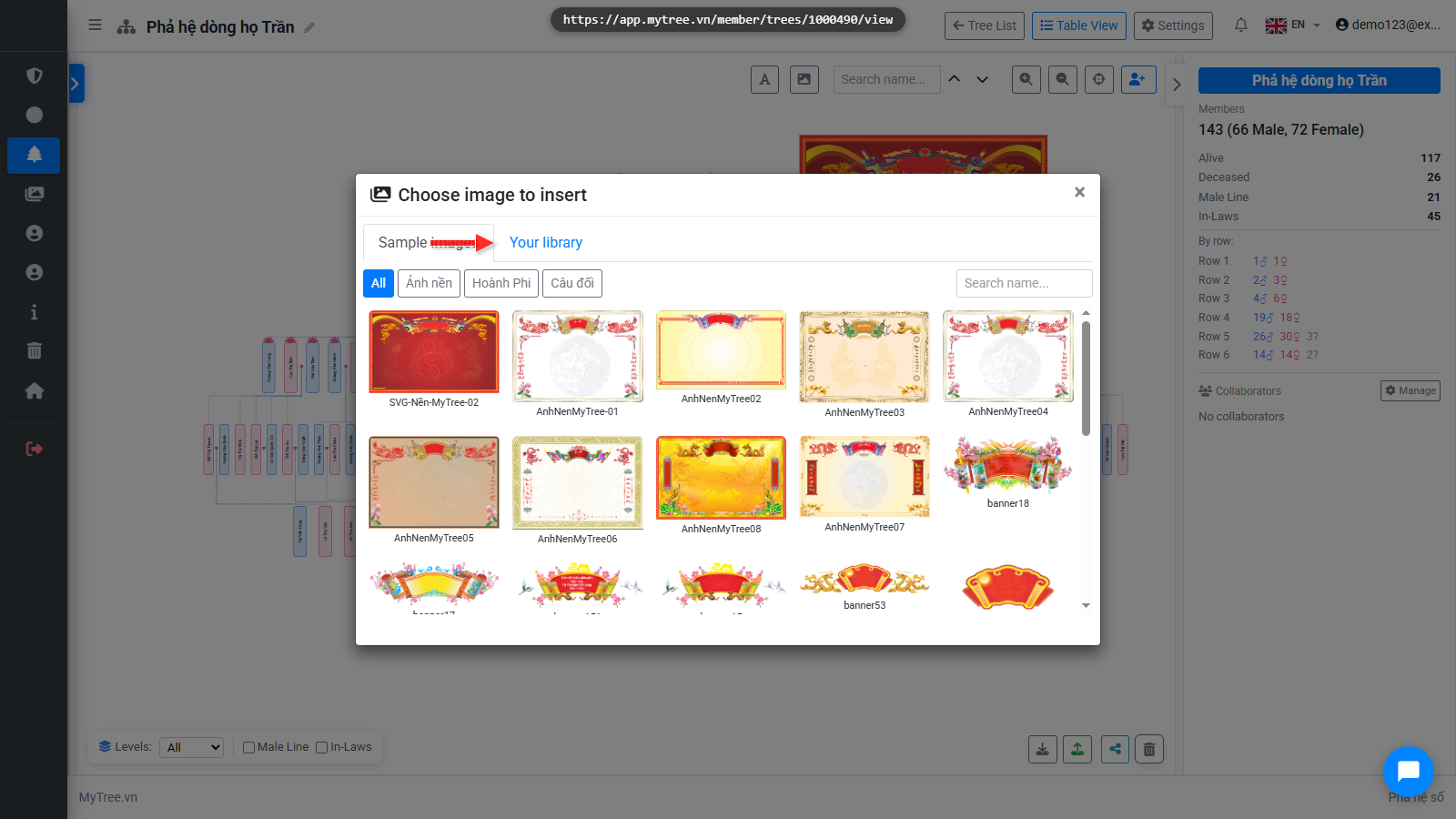
Step 8: Upload Image to Library
The Your Library tab lets you upload images from your computer. Uploaded images are saved for future use.
Step 9: Upload Image to Library
The Your Library tab lets you upload images from your computer. Uploaded images are saved for future use.
Step 10: Upload Image to Library
The Your Library tab lets you upload images from your computer. Uploaded images are saved for future use.
Step 11: Move and Resize Image
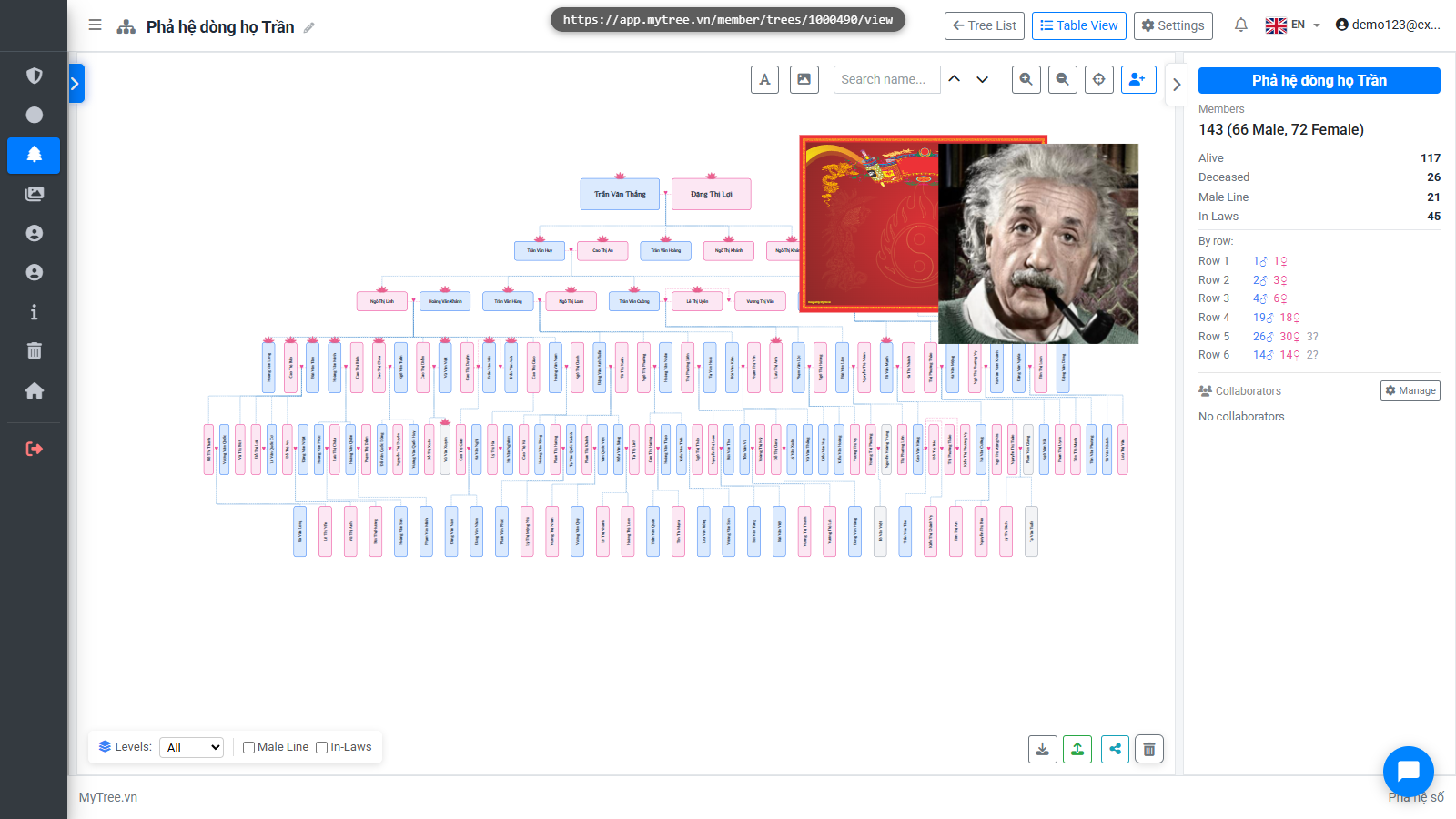
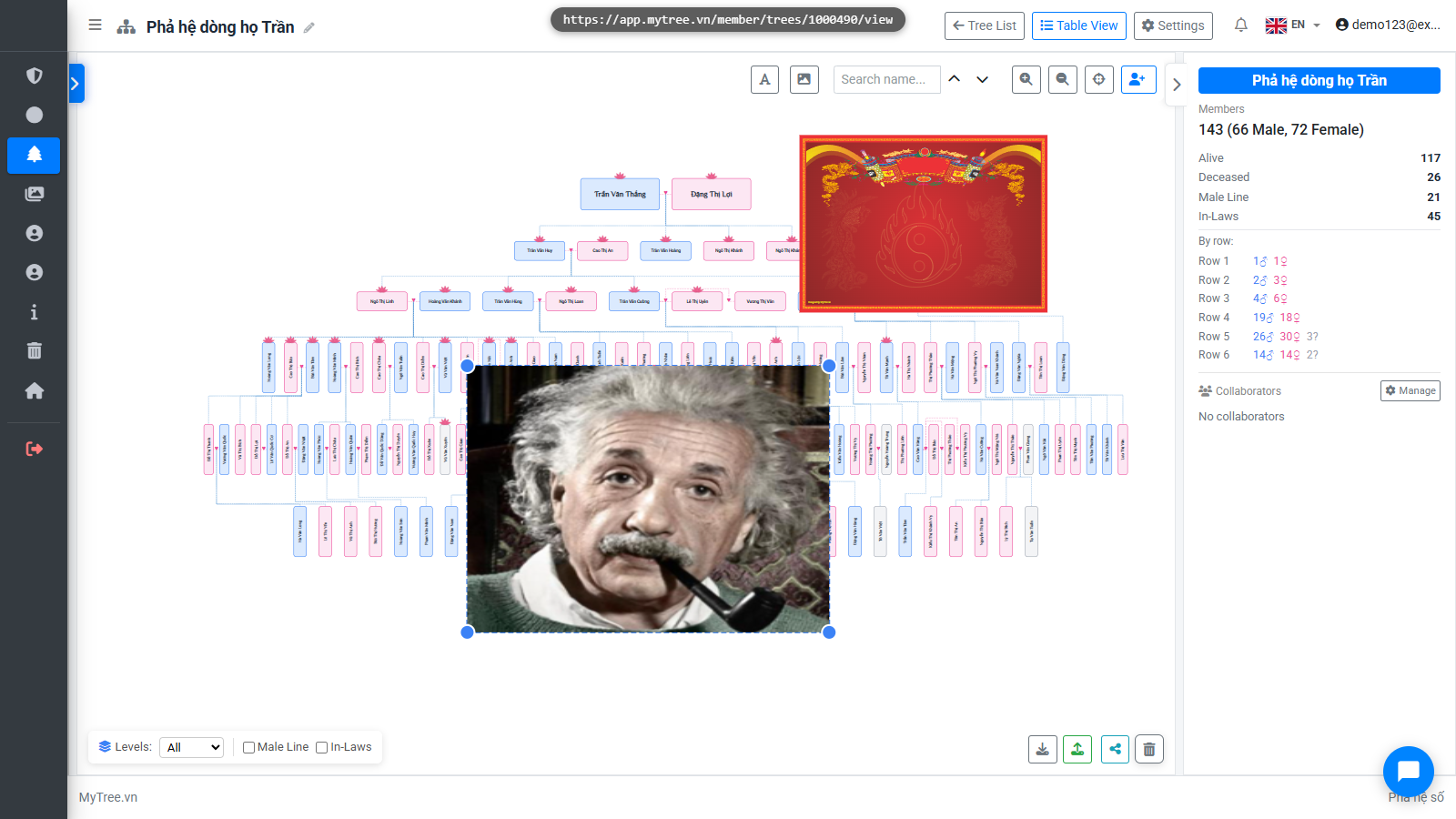
After inserting, you can drag the image to any position and drag the corners to resize.
Step 12: Add Decorative Text
Besides images, you can also add decorative text to the tree. Click Add Text to open the dialog.
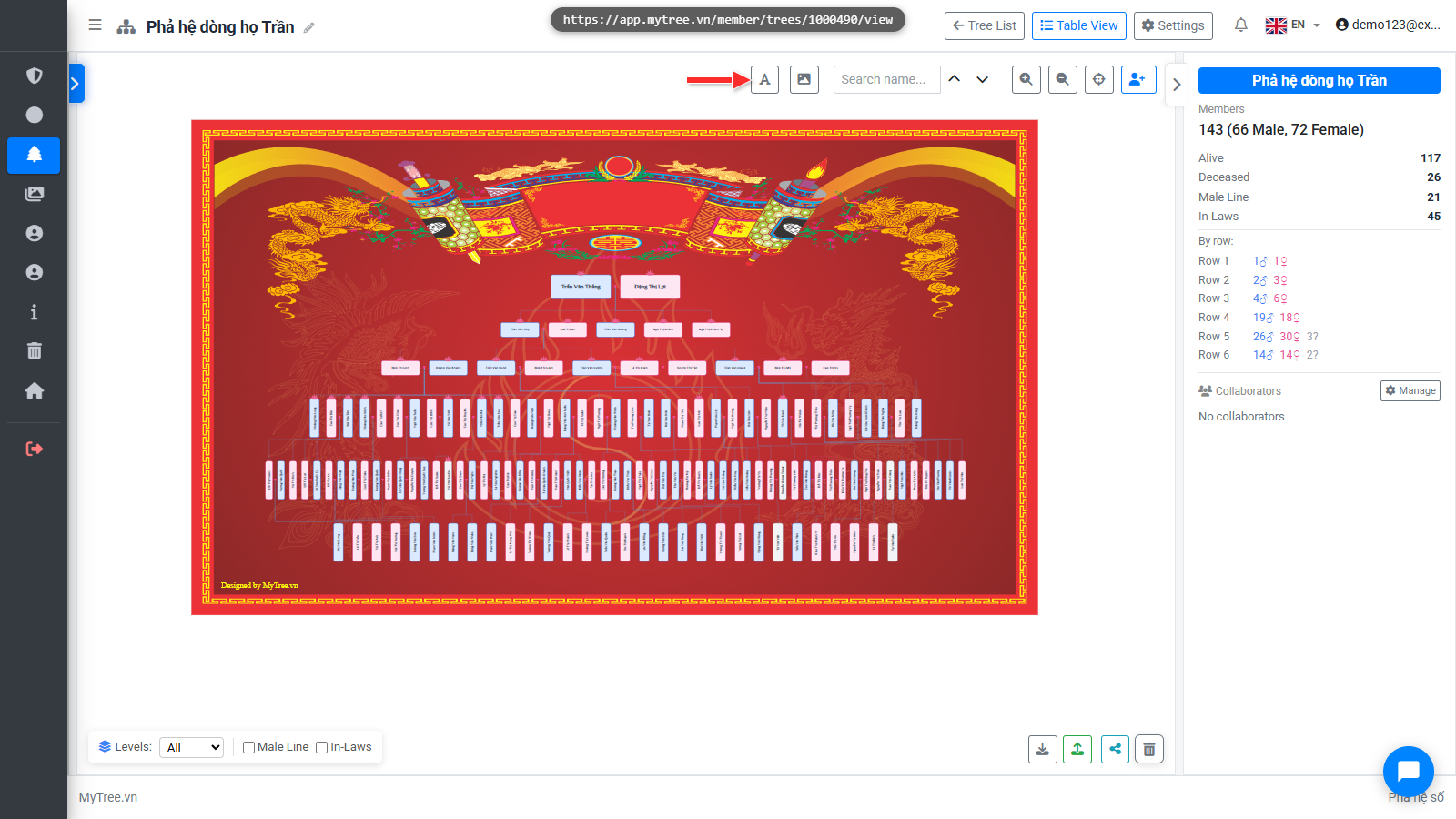
Step 13: Add Decorative Text
Besides images, you can also add decorative text to the tree. Click Add Text to open the dialog.
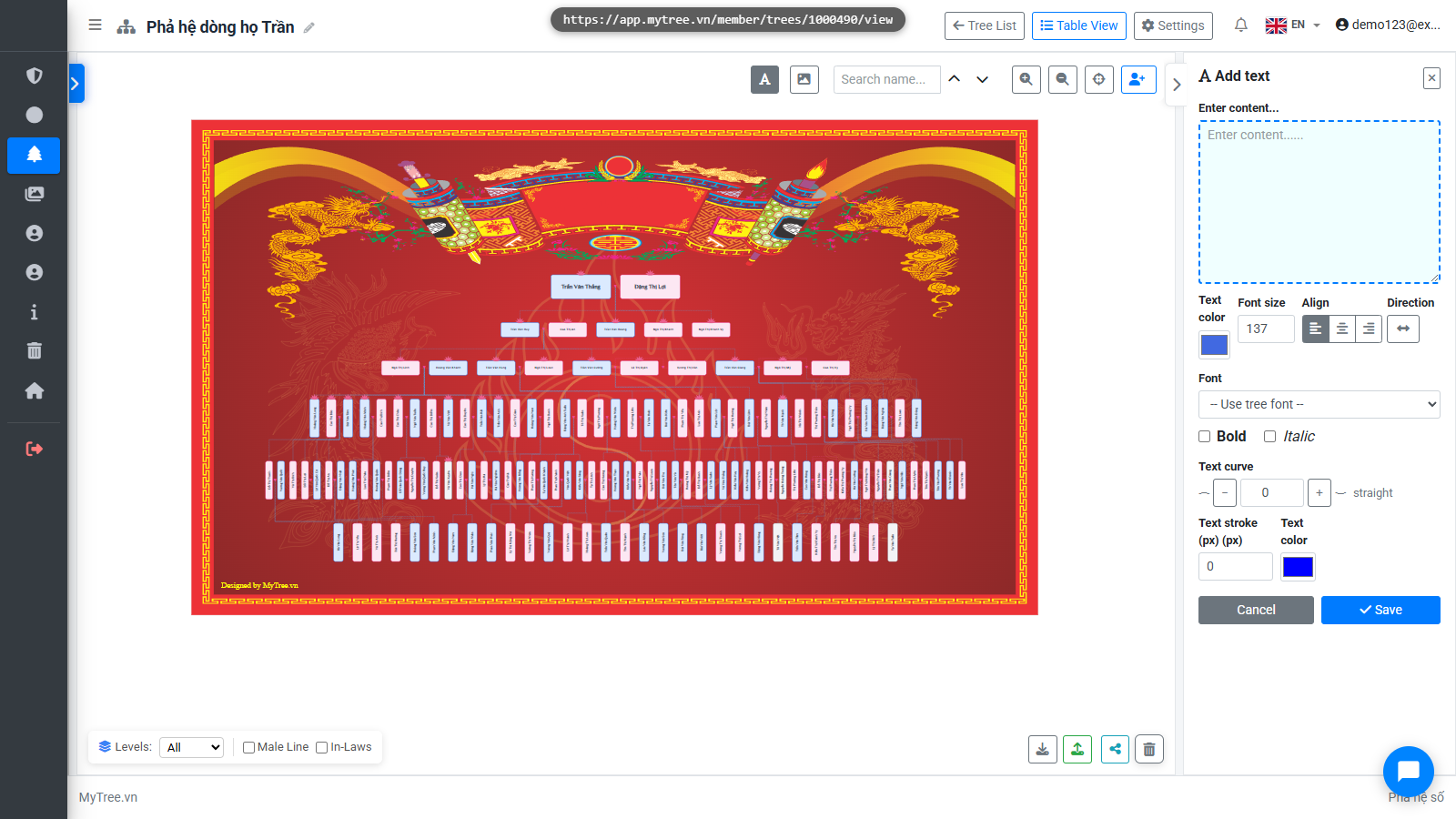
Step 14: Decorative Text Settings
Enter the content, choose font, color, size, and alignment. Hold Ctrl and drag to position the text anywhere on the tree.
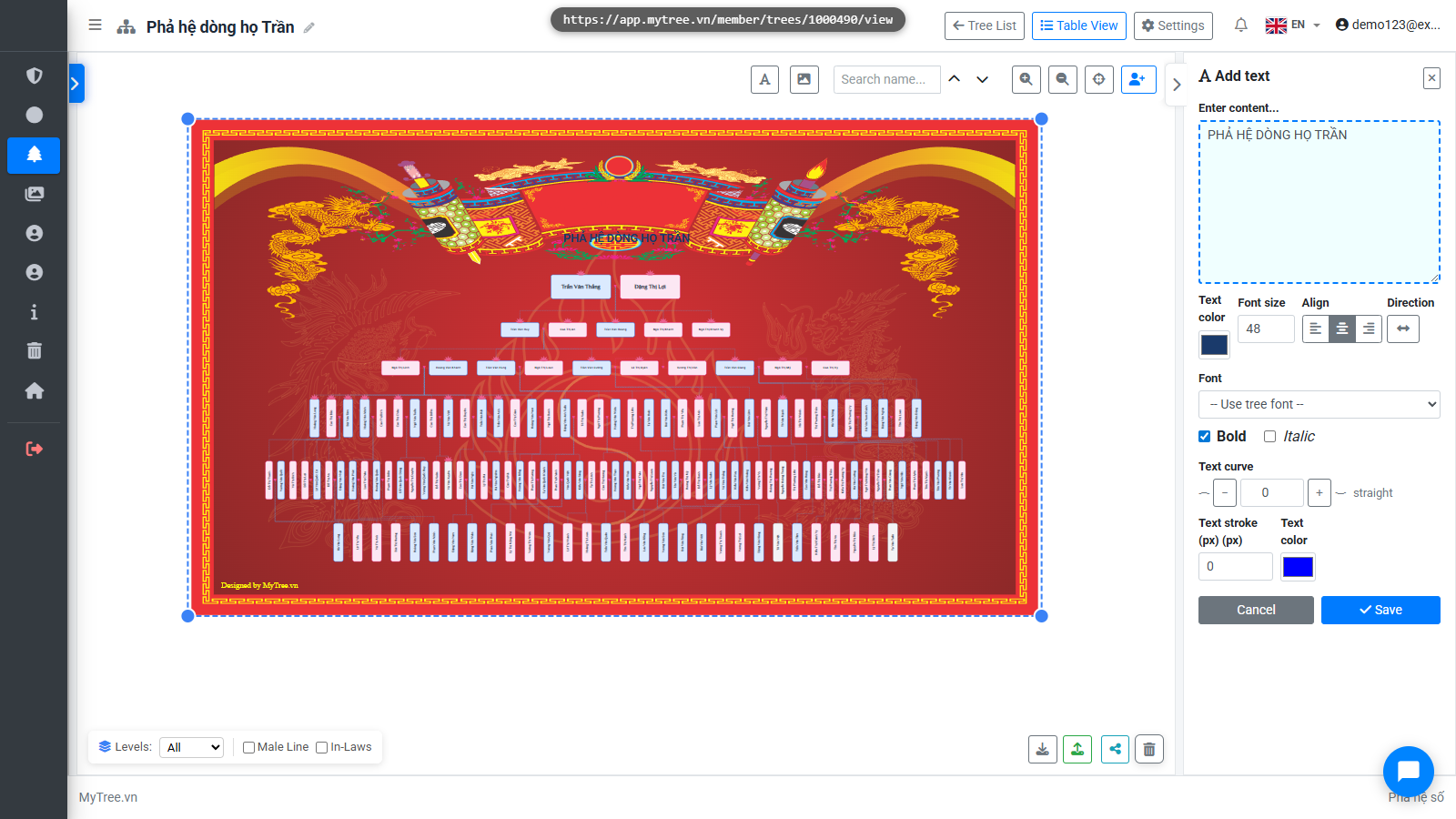
Step 15: You can resize the text and apply a curved arc effect, adjust the curve amount,
You can resize the text and apply a curved arc effect, adjust the curve amount, and add a border color so text remains visible even when it matches the background.
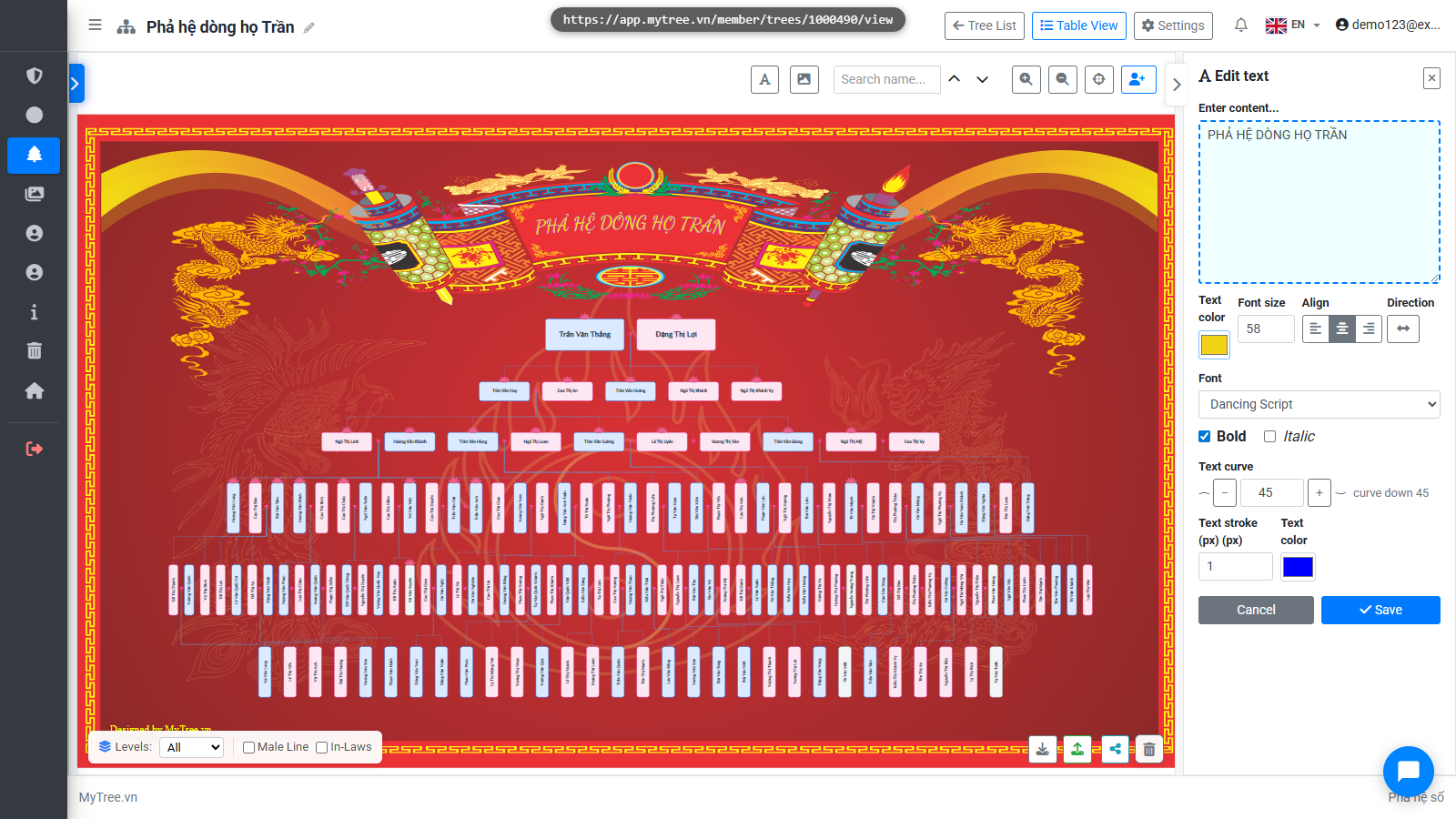
Step 16: You can add vertical couplets on both sides of the tree, flexible captions and a
You can add vertical couplets on both sides of the tree, flexible captions and annotations anywhere on the chart.